How to move files out of iCloud Drive without losing them on other devices
Moving a file out of iCloud Drive removes it from your other devices and from anyone you share with. Here's how to take it out safely.
 Alfiyan ·
· 4 min read
Alfiyan ·
· 4 min read
On this page 6
iCloud Drive feels like a normal folder on your Mac, and most of the time it behaves like one. Moving a file out of it is the exception. Drag a file from iCloud Drive to a folder on your Mac and it disappears from your iPhone, your iPad, your other Macs, and from anyone you shared it with. Here’s what’s going on, and how to take a file out without surprises.
Why moving out of iCloud Drive removes the file everywhere
Everything in iCloud Drive lives in iCloud first. Your Mac, iPhone and iPad each show the same set of files. When you move a file out to a folder that isn’t synced (say, a folder on an external drive or in your home folder outside iCloud), it’s no longer in iCloud Drive, so it’s removed from every device. Only the copy you moved to stays.
That also applies to Desktop and Documents if you’ve turned on Desktop & Documents Folders in iCloud settings: they’re part of iCloud Drive, so moving a file from the Desktop to a non-synced folder removes it from the Desktop on your other Macs too.
Finder warns you about this. If the warning bothers you, it can be turned off in Finder › Settings › Advanced (“Show warning before removing from iCloud Drive”), but leaving it on is the safer choice: turning it off doesn’t change what happens, only whether you’re told.
Cloud-only files: the name is here, the contents aren’t
With Optimize Mac Storage turned on, macOS saves space by keeping only the names of files you haven’t used in a while. The contents stay in iCloud and download when you open them. In Finder these files show a small cloud icon with a downward arrow.
That matters when you move or copy one:
- Opening or copying a cloud-only file downloads it first. Large files can take a while, and nothing happens offline.
- To keep a file on your Mac for good, Control-click it in iCloud Drive and choose Keep Downloaded (macOS Sequoia and later). It stays in iCloud Drive and on your other devices, but macOS won’t remove the local copy to save space.
- To download it once, choose Download Now from the same menu.
Copy instead of move
Most of the time you don’t actually want the file out of iCloud. You want a copy to work on somewhere else. In that case, copy it instead of moving it:
- Option-drag the file to the other folder. A green + on the pointer means you’re copying, and the original stays in iCloud Drive.
- Or select it, press ⌘C, go to the other folder and press ⌘V.
Copy when other devices or other people still need the file, or when you want an untouched version in iCloud while you edit. Move only when you mean “this no longer belongs in iCloud”.
Shared folders: tell people first
If the file is in a folder you share with others, moving it out removes it for everyone in that folder. They won’t get a message about it; the file is just gone from their side. Before taking a file out of a shared folder:
- Tell the people you share with, or leave a copy in the folder.
- Check whether you’re the owner. If someone else owns the shared folder, think twice: they may be relying on that file.
- Copy rather than move if you’re not sure.
The same goes for other synced folders, such as Dropbox, Google Drive and team folders: moving a file out takes it away for everyone who syncs that folder.
A safe checklist
Before you move anything out of iCloud Drive:
- Ask whether you need a move or a copy. If in doubt, copy.
- Make sure it’s downloaded. Look for the cloud icon; download it first if you’ll need it offline.
- Check whether it’s shared. If it is, tell people or leave a copy.
- Keep the Finder warning on. It’s the last chance to stop a move you didn’t mean.
How dragand handles iCloud files
dragand works with iCloud Drive, including cloud-only files:
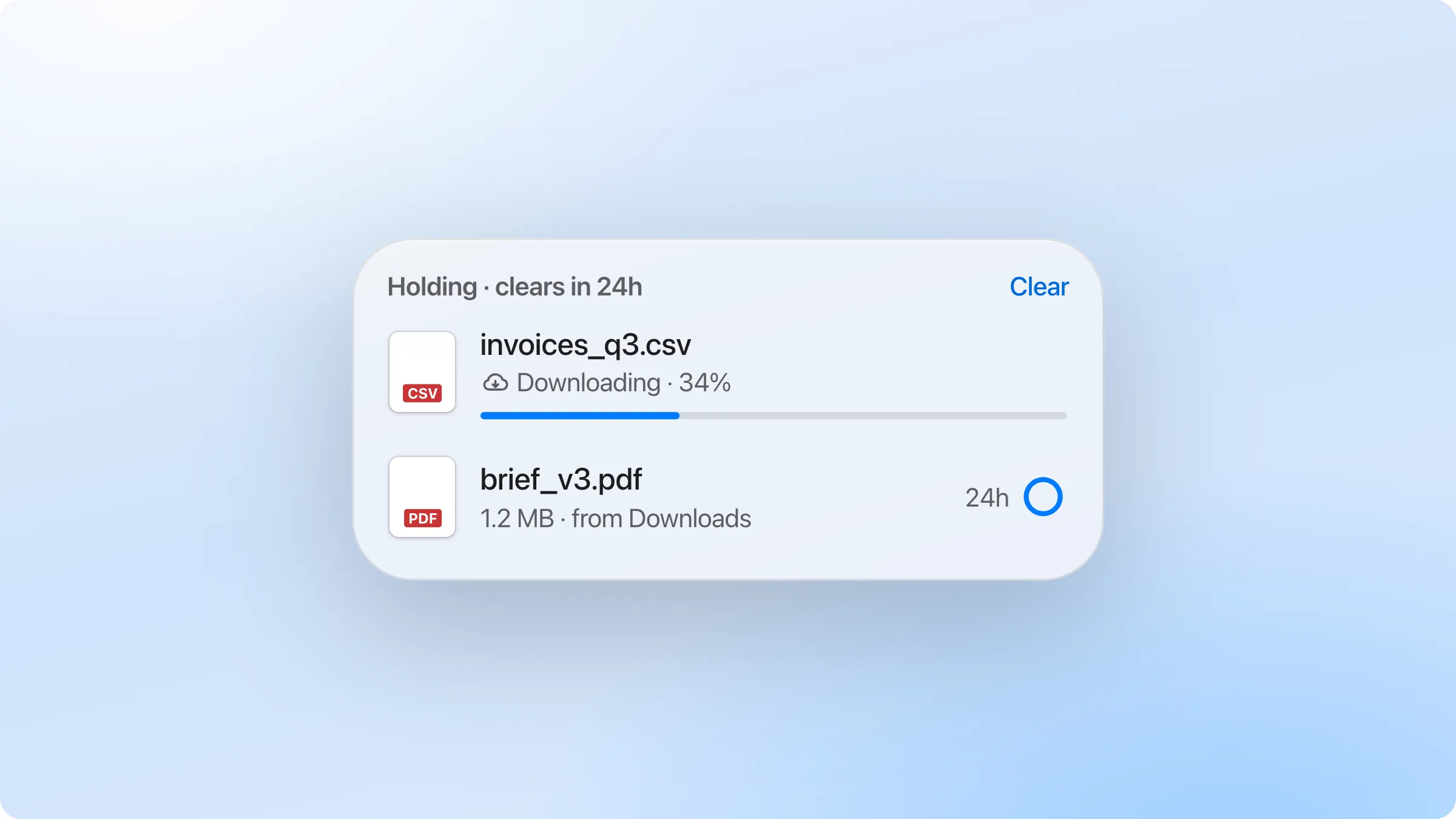
- Hold keeps a copy on the shelf, so the original stays in iCloud Drive and on your other devices. If the file is cloud-only, dragand downloads it first and shows the progress; the 24 hours start once the copy is complete. If you’re offline, it waits and finishes when you’re back online.
- Keep takes the file itself onto the shelf, which takes it out of iCloud Drive. So when you keep a file from iCloud Drive or a shared folder, dragand asks first, with Keep, Hold Instead or Cancel. Choosing Hold Instead leaves everything where it was.
- Every Keep can be undone, which puts the file back in its iCloud folder.
More on how dragand treats synced folders is in How it works.