How to keep a file handy on your Mac without cluttering your Desktop
Four ways to keep the file you need next close at hand, from Stacks to a shelf that cleans itself.
 Alfiyan ·
· 5 min read
Alfiyan ·
· 5 min read
On this page 6
You download a file to attach it to an email. You save a screenshot to drop into a chat. You drag an export to the Desktop “for now”. A week later, the Desktop is a wall of files you can’t remember saving. Here are four ways to keep the file you need next close at hand without that happening.
Why the Desktop fills up
The Desktop is the easiest place to put something you need in a minute: it’s always one drag away, and it’s visible behind every window. The trouble is that nothing ever leaves it. Most of those files were only useful for a day, but deleting them is a decision, so it never happens.
There’s a second, quieter problem. If you use iCloud Drive with Desktop & Documents Folders turned on, everything you drop on the Desktop also syncs to your other devices. A Desktop full of temporary files becomes an iCloud Drive full of temporary files.
What you want is a spot that’s as easy to reach as the Desktop, but that doesn’t keep everything forever. Each option below gets you part of the way there.
Option 1: Desktop Stacks
Right-click the Desktop and choose Use Stacks. macOS groups the files by kind, so twenty screenshots collapse into one neat pile labelled Screenshots. Click a stack to fan it open, and click again to close it.
You can change how stacks are grouped: right-click the Desktop, choose Group Stacks By, and pick Kind, Date Last Opened, Date Added, Date Modified, Date Created or Tags. Grouping by Date Added is handy if you mostly need “the thing I saved this morning”.
Stacks are free, built in and take a second to turn on. They don’t remove anything, though, so after a month you have tidy stacks of files you no longer need.
Good for: a calmer-looking Desktop with no new habits and no new app.
Option 2: A folder in the Dock
Drag a folder, such as Downloads, to the right side of the Dock, next to the Trash. It’s now one click away from any app, full screen or not, and you can drag files straight out of it into a browser upload box or an email.
Right-click the folder in the Dock to choose how it opens:
- Sort by Date Added, so the newest file is always on top.
- Display as Stack or Folder, depending on whether you want to see a preview of what’s inside.
- View content as Fan, Grid or List. Fan is quick for the last few files; List is better for a long folder.
Some people keep a dedicated “Working” folder in the Dock instead of Downloads, and save anything temporary there. It keeps the Desktop clear, and the folder is easy to empty in one go.
Like Stacks, though, nothing ever clears by itself. The folder grows until you sit down and sort it.
Good for: reusing recent downloads, and dragging files out without leaving the app you’re in.
Option 3: A drag-and-drop shelf
A shelf app gives you a drop target on the edge of the screen: drag a file there, switch apps, and drag it out where you need it. It’s the closest thing to the Desktop’s “always one drag away”, without covering your wallpaper in icons.
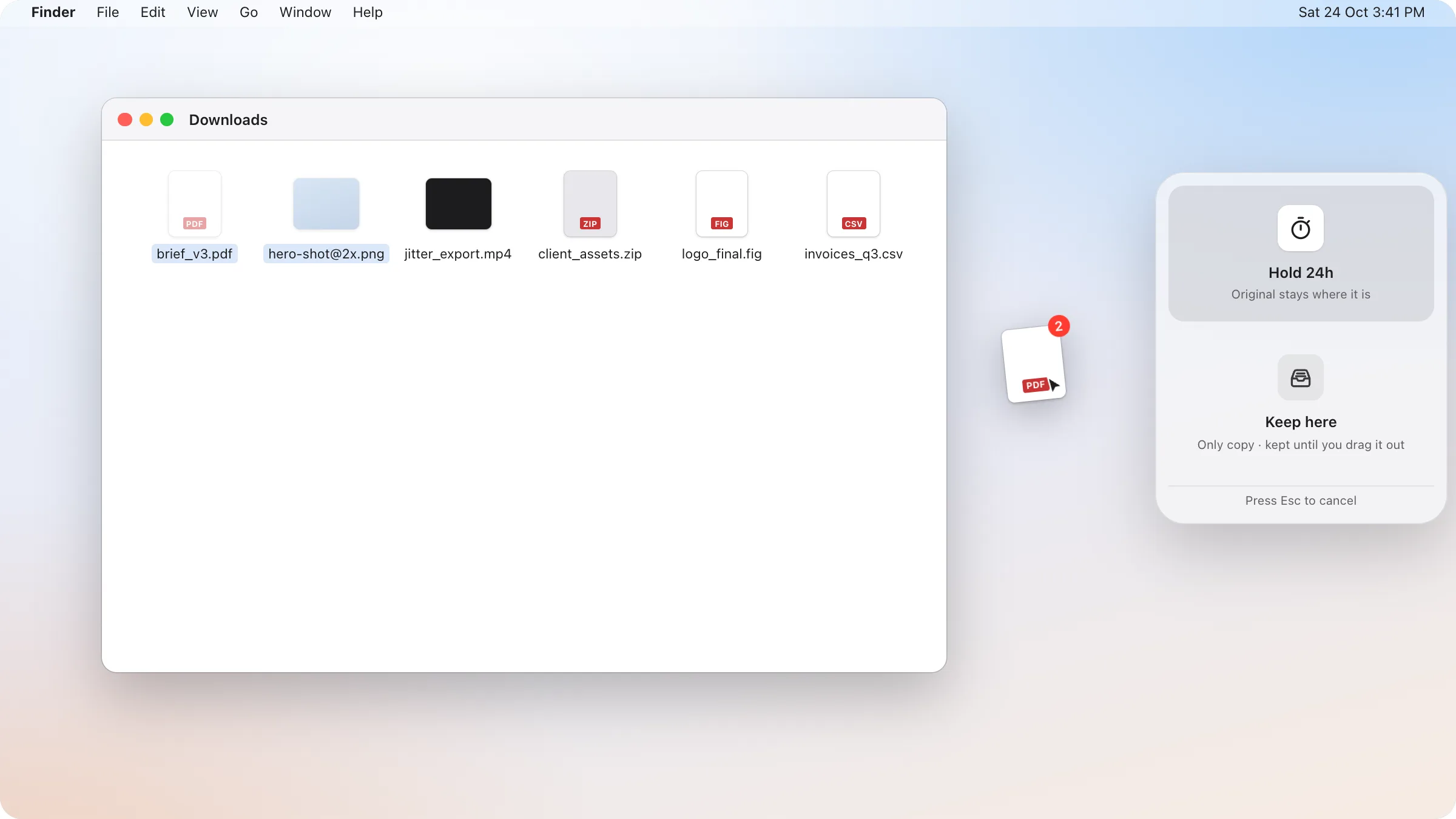
dragand works this way, with one difference: anything you Hold is a copy that clears itself after 24 hours, and anything you Keep stays until you take it. It stays off your screen until you drag a file. Then a small panel slides in at the right edge, and resting on it opens two zones:
- Hold 24h puts a copy on the shelf and leaves the original exactly where it was. Use it for uploads and attachments: once you’ve sent the file, there’s nothing to clean up.
- Keep here moves the file itself onto the shelf. It stays there, with no timer, until you drag it out or use Put Back to return it to the folder it came from.
Every drop can be undone, and dragand never deletes your originals: the held copy is the only thing it clears.
Other shelf apps exist too, and most of them keep everything until you clear it yourself. Whichever you pick, check what happens to the files you put there, and whether the app copies or moves them.
Good for: moving files between apps all day.
Option 4: A 24-hour rule
Whatever tool you use, the habit matters more than the tool: anything temporary should expire. Decide once that files saved “for now” get deleted tomorrow, and only keep what you deliberately move somewhere.
You can do this by hand in a couple of minutes a day:
- Save everything temporary to one place: the Desktop, a “Today” folder, or a shelf.
- At the end of the day, look at that place once.
- Move the few files worth keeping into a real folder. Delete the rest without opening them.
The rule works because it turns a hundred small decisions (“do I still need this?”) into one. If a file mattered, you’ll have moved it. If you didn’t, you can let it go. And if you’d rather not do it by hand, a tool that clears temporary copies on its own does the same job without the end-of-day step. There’s more on this in a 24-hour rule for temporary files.
Which one to use
| If you… | Try |
|---|---|
| Want a tidier look with no new app | Desktop Stacks |
| Mostly reuse recent downloads | Downloads in the Dock |
| Move files between apps all day | A shelf such as dragand |
| Want the clutter to stop for good | A 24-hour rule, by hand or automatic |
You can also combine them: Stacks to keep the Desktop calm, the Downloads folder in the Dock for recent files, and a shelf or a daily rule for everything you only need for a moment.