Clipboard history on Mac: what macOS keeps, and what it doesn't
What the Mac clipboard remembers, what Spotlight's clipboard history adds in macOS 26, and when a dedicated history is worth it.
 Alfiyan ·
· 4 min read
Alfiyan ·
· 4 min read
On this page 7
You copy a link, then a sentence, then a screenshot. An hour later you need the link again, and it’s gone: the clipboard only ever held the last thing. Here’s what the Mac clipboard actually keeps, what changed in macOS 26, and when a dedicated clipboard history is worth having.
One item at a time
The macOS clipboard (Apple calls it the pasteboard) holds one item. Copy something new and the old one is replaced. There’s no undo for that, and nothing is saved when you restart.
That one item is richer than it looks, though. When you copy from a web page, the app usually puts several versions on the clipboard at once: formatted text, plain text, sometimes HTML or an image. The app you paste into picks the version it understands. That’s why the same copy can paste with its formatting into Pages and as plain text into Terminal.
If you only want the plain text, most apps have Paste and Match Style in the Edit menu, usually ⌥⇧⌘V.
Universal Clipboard: copy on one device, paste on another
If your Mac, iPhone and iPad use the same Apple Account, with Wi-Fi, Bluetooth and Handoff turned on, you can copy on one and paste on another. It’s called Universal Clipboard and it works without any setup beyond that.
It’s meant for the moment, not for keeping things. Apple says the copied item is only available on the other device for a short time, and it’s still one item: copy something else and it’s replaced everywhere.
Spotlight’s clipboard history in macOS 26
Since macOS 26 Tahoe, Spotlight has a clipboard history of its own. Press ⌘Space to open Spotlight, then ⌘4 to switch to the clipboard view. The first time, Spotlight asks whether to turn it on; it only saves what you copy from then on.
A few things worth knowing:
- How long it keeps things: 8 hours by default. Since macOS 26.1 you can choose 30 minutes, 8 hours or 7 days in System Settings › Spotlight.
- What it skips: passwords copied from Apple’s Passwords app and other password managers.
- Clearing it: the ⋯ button in the clipboard view has Clear History.
- Turning it off: System Settings › Spotlight, where you can also leave clipboard results out of searches.
For many people that’s enough: it’s built in, it’s free, and “the link from an hour ago” is exactly what it’s for. If you’re on macOS 26 or later and haven’t tried it, try it first.
When you want more than that
A dedicated clipboard manager is worth it when the built-in history runs out. The usual reasons:
- You need older things. A snippet from last week, a colour from a project you closed days ago.
- You reuse the same text. An address, a sign-off, a code snippet you paste ten times a day. Pinning keeps it at the top for good.
- You want control over what’s saved. Some apps should never end up in a history: a banking app, a work tool with customer data, a password manager.
- You’re on an older macOS. Spotlight’s clipboard history needs macOS 26 or later.
What a private clipboard history should never keep
A clipboard history sees almost everything you do, so it’s worth checking how a tool handles it before you turn one on:
- Private items. Password managers mark what they copy as private, and a good history skips those automatically.
- Apps you choose. You should be able to exclude any app, so nothing copied in it is ever saved.
- A pause. For the times you’re about to copy something sensitive by hand.
- Where it’s stored. On your Mac, encrypted, and not synced to anyone’s server unless you want that.
- How to delete it. Clearing the last hour, the day or everything should take one click.
Setting one up with dragand
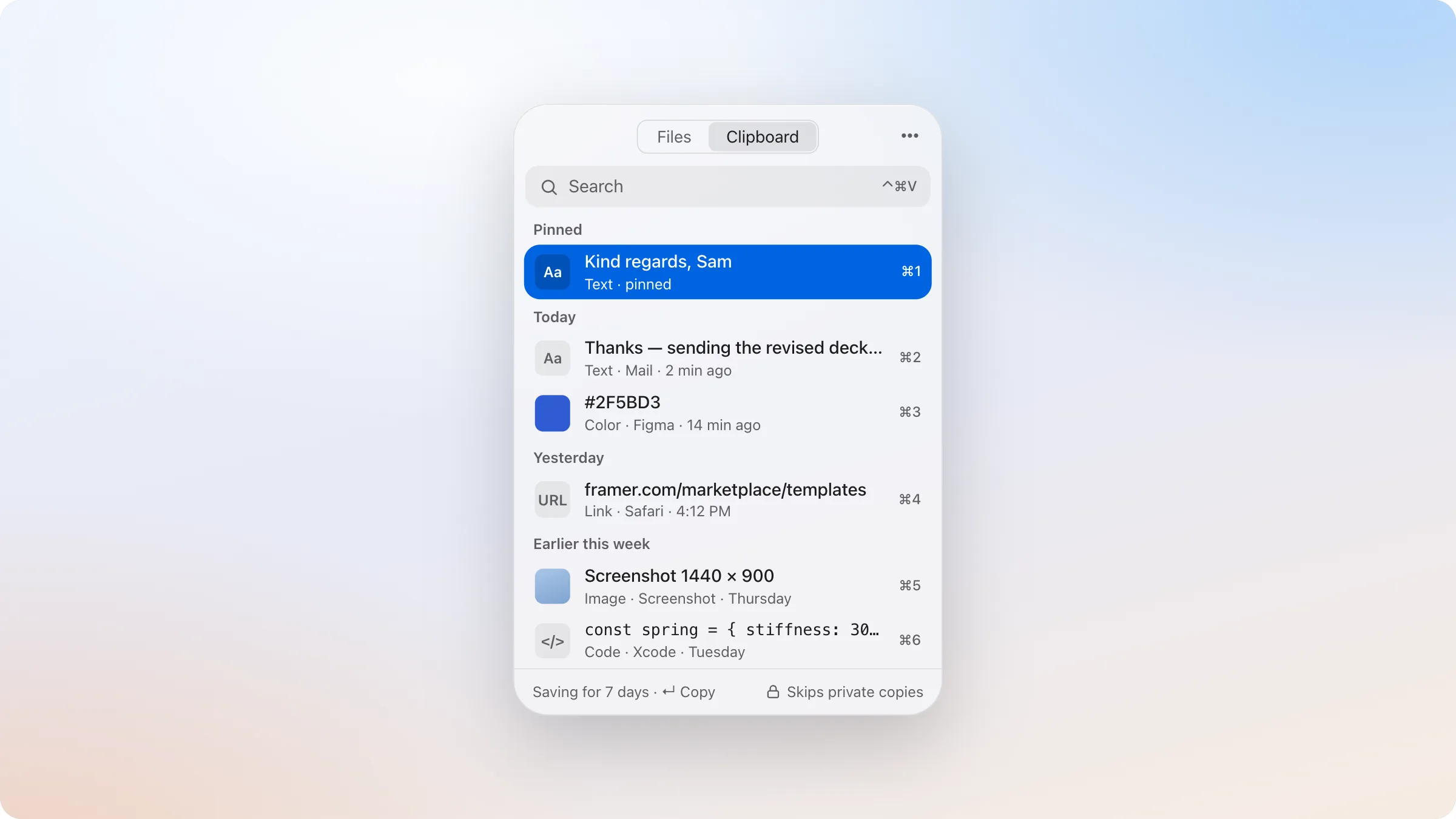
dragand has an optional clipboard history that follows those rules. It’s off until you turn it on, and then it keeps the last 7 days (or 1 or 30, your choice), up to 300 items and 1 GB in all.
- Press ⌃⌘V to open it, or rest the pointer on the right edge of your screen and click Clipboard.
- Type a few letters to search, then press ↵ to copy the item and ⌘V to paste it where you need it. ⌥↵ copies it as plain text, and ⌘1–9 copies one of the first nine.
- Pin anything you reuse; pinned clips never expire.
- It’s stored encrypted on your Mac, skips anything password managers mark as private, and never saves from apps you exclude in Settings › Clipboard.
Which one to use
| If you… | Use |
|---|---|
| Want the last few hours, on macOS 26 or later | Spotlight’s clipboard history |
| Copy on your iPhone and paste on your Mac | Universal Clipboard |
| Need last week’s copies, pinned snippets or per-app exclusions | A dedicated history, such as dragand’s |
They also work side by side: Universal Clipboard for moving one thing between devices, and a longer history on the Mac for everything you might need again.