The Desktop as a junk drawer: a 24-hour rule for temporary files
Most files you save are only useful for a day. One simple rule, by hand or automatic, keeps the Desktop and Downloads from filling up.
 Alfiyan ·
· 3 min read
Alfiyan ·
· 3 min read
On this page 6
Look at your Desktop or your Downloads folder and count the files you’ll ever open again. For most people it’s a handful out of dozens. The rest were useful once, for a few minutes, and have been sitting there since. One rule fixes that: anything saved “for now” expires tomorrow, unless you deliberately keep it.
Why the Desktop becomes a junk drawer
Saving is easy and deleting is a decision. When you save a file, you’re busy: you need it for an email, an upload, a chat. When you’d delete it, you have to stop and ask whether you still need it, and the honest answer is usually “probably not, but maybe”. So it stays.
Multiply that by a few files a day and you get the familiar wall of icons. It costs you more than looks:
- Finding things gets slower. The file you need is somewhere among forty others with names like
Screenshot 2026-10-21 at 14.02.11.png. - It may sync. With iCloud Drive’s Desktop & Documents Folders turned on, every temporary file on the Desktop is also stored in iCloud and on your other devices.
- It adds a background hum. A cluttered Desktop is behind every window you open.
The rule
Anything saved “for now” expires tomorrow, unless you move it somewhere on purpose.
That’s all of it. It works because it turns a hundred small decisions (“do I still need this?”) into one: at the end of the day, keep the few files that matter and let the rest go. If a file mattered, you’ll have kept it. If you didn’t keep it, you can let it go without opening it.
Doing it by hand
You need one place for temporary files and one look a day.
- Pick one place for anything temporary. The Desktop works if you keep nothing permanent there. A folder called “Today” in the Dock works too.
- Point your downloads and screenshots at it. In Safari, Settings › General › File download location. For screenshots, press ⇧⌘5, click Options and choose a Save to location.
- Look once at the end of the day. Move anything worth keeping into a real folder. Select everything else and press ⌘⌫ to move it to the Trash.
A tip that makes the daily look painless: sort by Date Added (in a Finder window, View › Sort By › Date Added), so today’s files are on top and you never have to scroll.
If a day slips, it’s fine. The rule still works on a Friday afternoon for the whole week.
Doing it automatically
If you’d rather skip the end-of-day step, a few tools can enforce the rule for you:
- Downloads cleanup scripts or Shortcuts automations that move or trash files older than a day. Powerful, but easy to get wrong, and they tend to delete originals, which is the risky part.
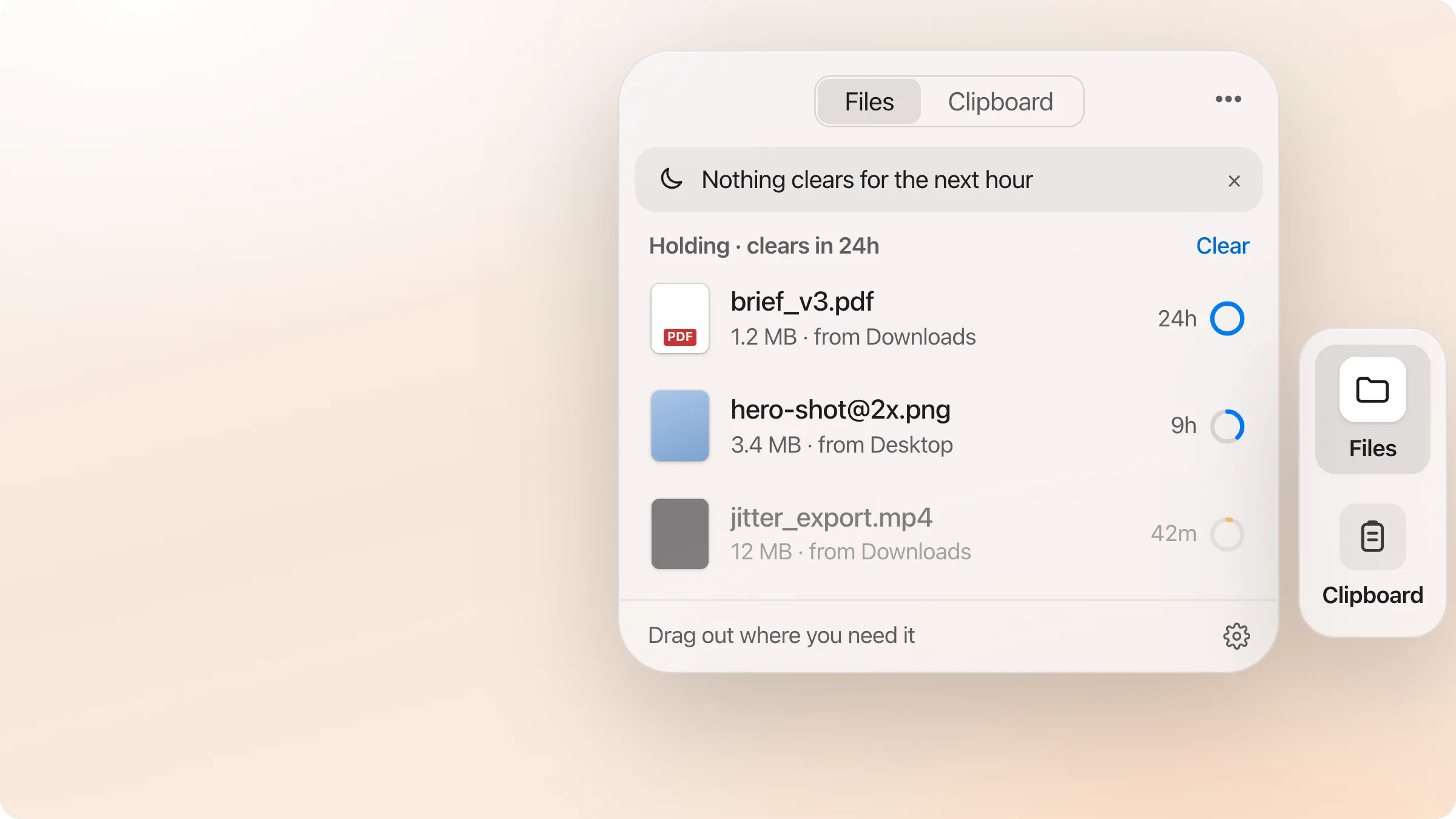
- A shelf that clears copies. dragand works this way: drop a file on Hold and it keeps a copy on the shelf for 24 hours, then clears that copy by itself. Your original stays where it was, so nothing you saved properly is ever touched. Drop on Keep instead, and the file stays on the shelf until you take it.
Whatever you use, check three things before you trust it with your files:
- Does it delete originals, or only copies? Clearing a copy is safe; deleting your only file is not.
- Can you see what’s about to go? You should be able to see what clears next and stop it.
- Can you undo it? If something clears by mistake, getting it back should be one click, not a trip to the Trash or a backup.
What deserves a real folder
The rule only works if keeping is easy, so decide in advance what always gets kept:
- Anything you’ll need to find again: contracts, receipts, invoices, signed documents.
- Anything you made: designs, drafts, exports you’ll revise.
- Anything you can’t download again: one-off files from people, photos you didn’t take with your phone.
Everything else (screenshots for a chat, attachments you already sent, installers, the third download of the same PDF) can safely expire.
Start tomorrow
Tonight, pick your one temporary place and point your downloads at it. Tomorrow evening, take one look. That’s the whole habit, and after a week the Desktop is just a desktop again. For more ways to keep files close without the clutter, see How to keep a file handy on your Mac.