Keyboard shortcuts for working with files on a Mac
The Finder and system shortcuts worth learning for finding, previewing, moving and capturing files, plus a few for dragand.
 Alfiyan ·
· 3 min read
Alfiyan ·
· 3 min read
On this page 7
You can do most of your file work in Finder without touching the mouse. These are the shortcuts worth learning, grouped by what you’re trying to do. All of them work in Finder on current macOS; the dragand ones are at the end.
Finding files
| Shortcut | What it does |
|---|---|
| ⌘Space | Open Spotlight and search your whole Mac |
| ⌘F | Search from a Finder window |
| ⇧⌘G | Go to Folder: type or paste a path, such as ~/Library |
| ⌥⌘L | Open Downloads |
| ⇧⌘D | Open the Desktop folder |
| ⇧⌘O | Open Documents |
| ⇧⌘H | Open your home folder |
Go to Folder also works inside Open and Save dialogs, which makes it the quickest way to save something into a folder you can name but can’t see.
Looking at files without opening them
| Shortcut | What it does |
|---|---|
| Space | Quick Look: preview the selected file; press again to close |
| ⌘I | Get Info: size, dates, where it came from |
| ⌘↓ | Open the selected file or folder |
| ⌘↑ | Go up to the enclosing folder |
Quick Look works on several files at once: select them, press Space, and use the arrow keys to step through.
Acting on files
| Shortcut | What it does |
|---|---|
| ↵ | Rename the selected file |
| ⌘D | Duplicate |
| ⌘⌫ | Move to Trash |
| ⌘Z | Undo the last move, rename or trash |
| ⌘C, then ⌥⌘V | Move a file: copy it, then paste with Option to move it instead of copying |
| ⌥⌘C | Copy the selected file’s full path |
To put something back from the Trash, open the Trash, select it and choose File › Put Back; it returns to the folder it was deleted from.
Finder windows and tabs
| Shortcut | What it does |
|---|---|
| ⌘N | New Finder window |
| ⌘T | New tab |
| ⌘1–4 | Icon, list, column or gallery view |
| ⌥⌘P | Show or hide the path bar at the bottom |
| ⇧⌘. | Show or hide hidden files |
Screenshots that don’t land on the Desktop
| Shortcut | What it does |
|---|---|
| ⇧⌘4 | Capture part of the screen |
| ⇧⌘5 | Screenshot and recording tools, with Options for where to save |
| Add ⌃ to either | Copy the screenshot to the clipboard instead of saving a file |
⌃⇧⌘4 is the one to remember: capture a bit of the screen and paste it straight into a message, with no file left behind. To stop screenshots piling up on the Desktop, press ⇧⌘5, click Options and pick another Save to location.
dragand’s shortcuts
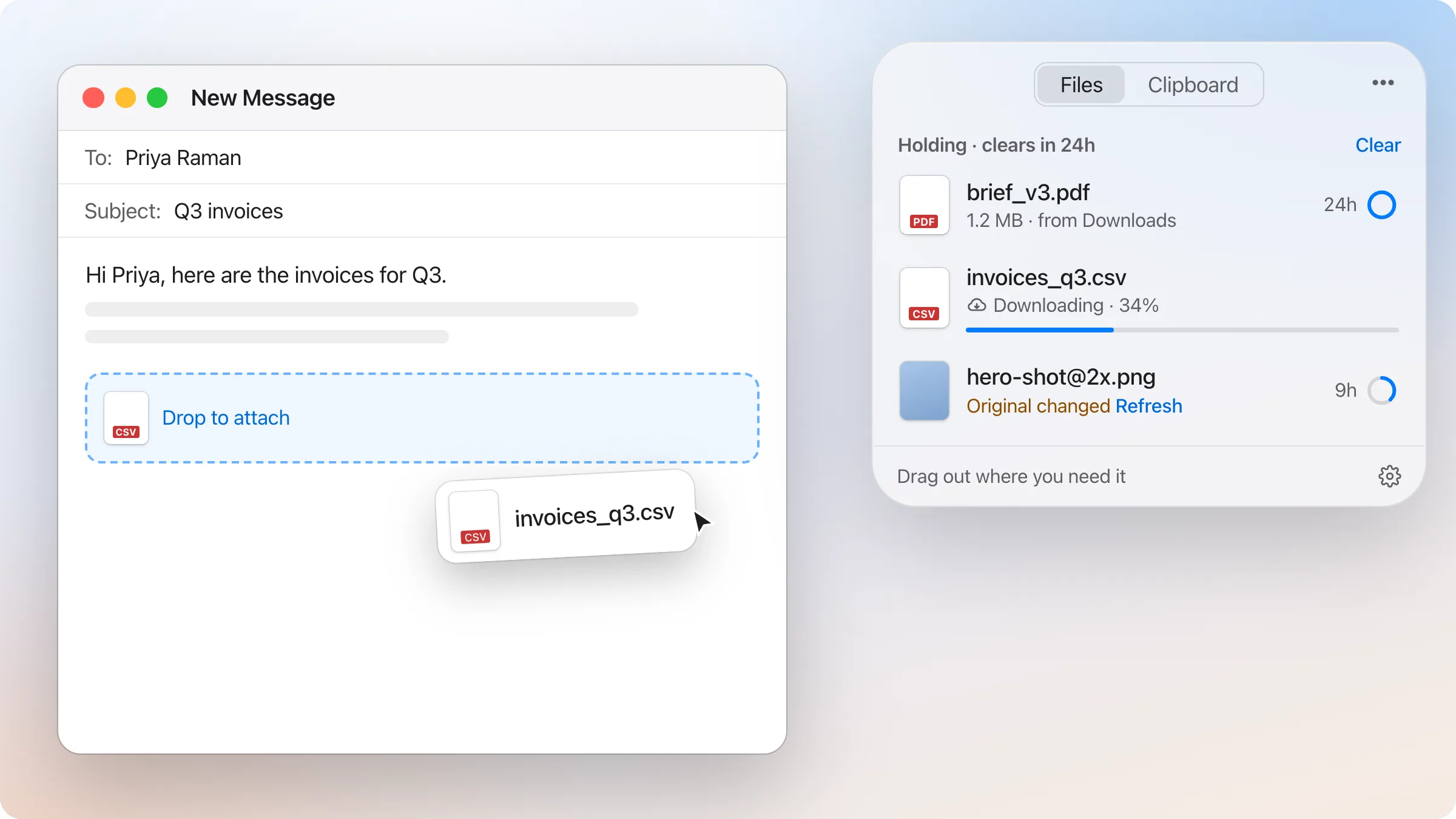
If you use dragand, two shortcuts work from anywhere, even when its panel isn’t showing:
| Shortcut | What it does |
|---|---|
| ⌃⌥⌘S | Open the shelf |
| ⌃⌘V | Open clipboard history (if you’ve turned it on) |
Inside the panel:
| Shortcut | What it does |
|---|---|
| Space | Quick Look the selected item |
| ⌫ | Remove the selected item, with Undo |
| ⌘Z | Undo the last action |
| ↵ | In clipboard history: copy the selected item, then paste with ⌘V |
| ⌥↵ | Copy as plain text |
| ⌘1–9 | Copy one of the first nine clips |
You can change the two global shortcuts in dragand’s Settings › General. A new shortcut needs ⌃, or ⌘ with ⌥, so it can’t take over typing or ⌘V.
Learn three, not thirty
Nobody needs all of these. Pick the three you’d use today (for most people that’s Space for Quick Look, ⇧⌘G for Go to Folder and ⌃⇧⌘4 for screenshots to the clipboard) and add more once those are habit.