Drag and drop on Mac: 9 tricks most people don't know
Spring-loaded folders, copying and moving with modifier keys, dropping into dialogs and the Dock, and more drag-and-drop tricks for macOS.
 Alfiyan ·
· 4 min read
Alfiyan ·
· 4 min read
On this page 10
Drag and drop is the most Mac thing there is, and most of us only use a fraction of it. Here are nine tricks that work in Finder and across apps on current macOS.
1. Copy, move or make an alias with a modifier key
What a plain drag does depends on where you drop:
- On the same disk, a drag moves the file.
- To another disk (a USB drive, a network share), a drag copies it.
Hold a key while you drop to change that:
| Hold | What happens |
|---|---|
| ⌥ Option | Copies the file, even on the same disk (a green + appears on the pointer) |
| ⌘ Command | Moves the file to the other disk instead of copying it |
| ⌥⌘ | Makes an alias that points to the original (a small arrow appears) |
You can press the key after you start dragging, as long as you’re still holding the mouse button.
2. Spring-loaded folders
Drag a file over a folder and hold it there: after a moment, the folder opens. Keep going down through subfolders the same way, then drop. It saves you opening the destination before you start. Press Space while hovering to open the folder right away.
You can change the delay, or turn it off, in System Settings › Accessibility › Pointer Control (look for spring-loading).
3. Switch apps in the middle of a drag
Start dragging a file, then, without letting go, press ⌘Tab and pick another app. Its window comes to the front and you can drop into it. You can also hold the file over an app’s icon in the Dock for a moment, and the app comes to the front.
4. Drop a file into an Open or Save dialog
In any Open or Save dialog, drag a file or folder from Finder into the dialog. It jumps straight to that file’s folder. It’s the fastest way to save a new file next to an existing one.
5. Drop onto an app in the Dock
Drag a file onto an app’s icon in the Dock to open it with that app, even if it isn’t the default. If the app can’t open that kind of file, its icon won’t highlight. The same works with app icons in the Applications folder.
6. Drag files into Terminal for their path
Drop a file or folder into a Terminal window and its full path is typed for you, with spaces escaped. Handy for any command that needs a path. In Finder you can also copy a path without dragging: select the file and press ⌥⌘C.
7. Drag text, images and links out of apps
Most apps let you drag content out, not only files:
- Selected text dropped on the Desktop becomes a text clipping you can drag into other apps later.
- An image in Safari or Preview dropped on the Desktop or a folder is saved as a file.
- A link dragged from Safari’s address bar becomes a
.webloclink file. - A screenshot: after ⇧⌘4, drag the thumbnail in the corner straight into a message or document before it saves.
8. Drag the document you’re working on
Hover over the title of a document window in most apps (Pages, Preview, TextEdit) and a small icon appears beside the name. Drag that icon to attach the document to an email, drop it into a chat, or move it to a folder, without going to Finder first.
9. Park a file somewhere mid-drag
The trick nobody tells you: you don’t have to finish a drag in one go. If the window you need isn’t open yet, put the file down somewhere close and pick it up again.
- The Desktop works, but it’s how Desktops fill up.
- A folder in the Dock works too: drop it there, then drag it back out later.
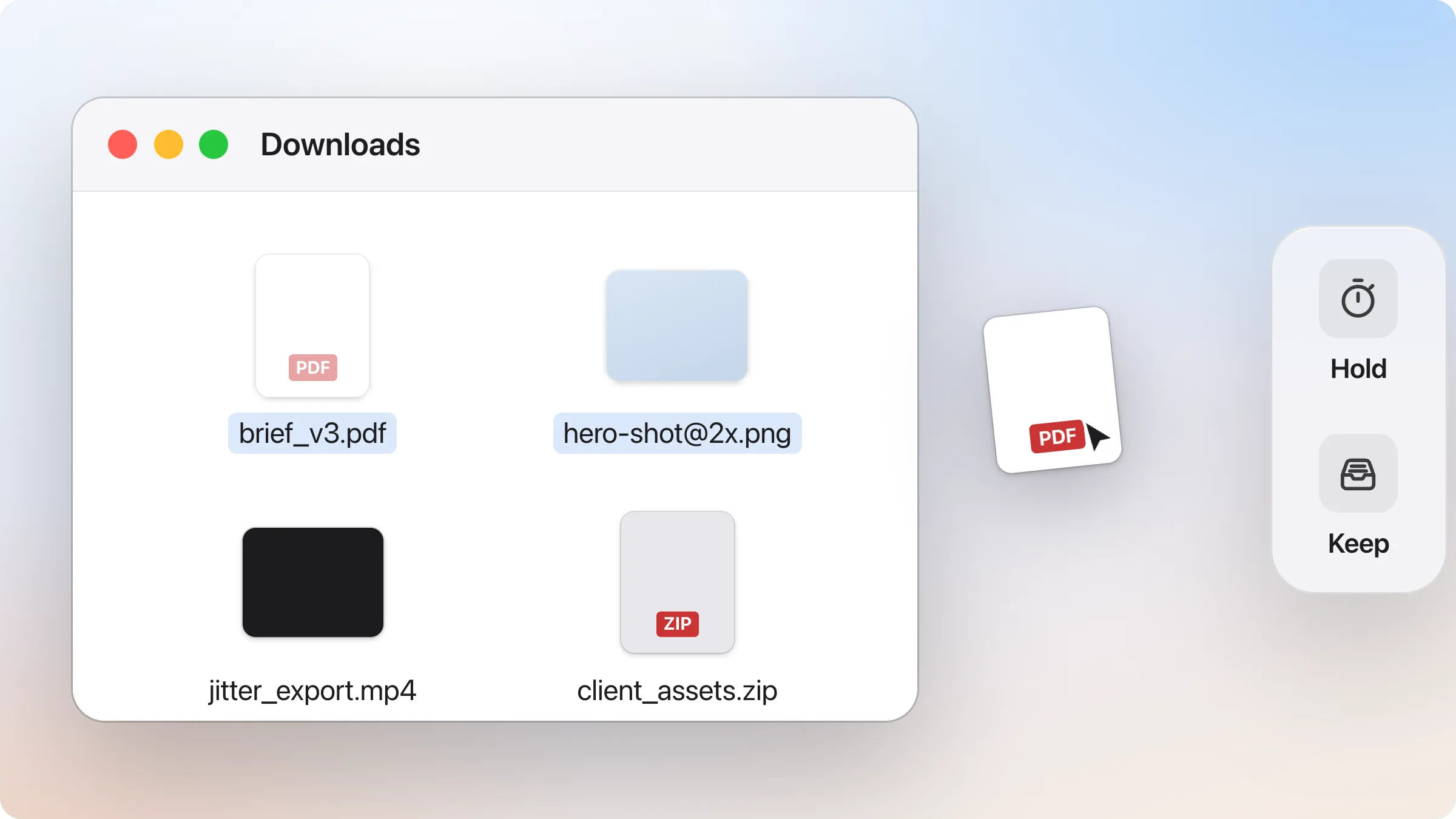
- A shelf is built for exactly this. dragand sits at the right edge of your screen and only comes in while you drag. Drop on Hold to park a copy that clears itself after 24 hours, or on Keep to park the file itself until you need it. When you’re ready, drag it out into the app that needs it.
Bonus: undo a drag you didn’t mean
Moved a file to the wrong folder? In Finder, press ⌘Z right away to undo the move. And if you’re mid-drag and change your mind, press Esc or drop the file back where it came from.